DigiLocker App: Sign Up, Login, Services, Documents, Download & Delete Account
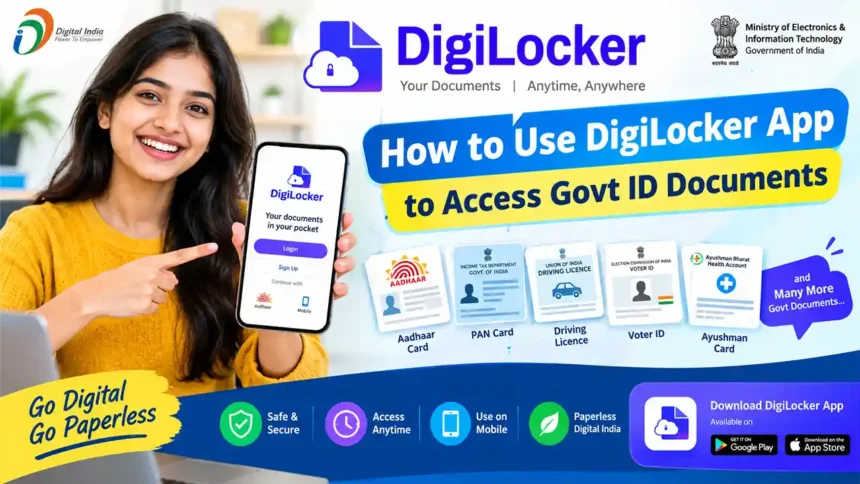
Do you still carry Aadhaar, PAN, driving licence and marksheets in a file every time? With DigiLocker, you can keep all your important documents safely on your mobile and show or share them anytime. DigiLocker is a free digital document wallet by the Government of India (Ministry of Electronics & IT). In this post, I answer the most common user questions: DigiLocker sign up, login, available services, important documents, how to download documents, benefits, how to delete account and customer care.
1. What is DigiLocker?
DigiLocker is the official cloud-based document storage app of the Indian government. Documents are of two kinds:
- Issued Documents: Documents directly fetched from the issuing department (CBSE, Income Tax, Transport, UIDAI etc.). They are digitally signed and treated as original.
- Uploaded Documents: Documents you scan and upload yourself (PDF, JPG, PNG). They are for personal storage and are not the same as issued documents.
| Item | Details |
|---|---|
| Official Website | https://www.digilocker.gov.in/ |
| App | “DigiLocker” on Google Play Store and Apple App Store |
| Cost | Free |
| Needed to Register | Mobile number linked with Aadhaar |
2. DigiLocker Sign Up Process (Create Account)
- Download the app: Install the DigiLocker app from Play Store / App Store, or open the official website in a browser.
- Tap Get Started and then choose Sign Up (Create Account).
- Enter Full Name, Date of Birth, Gender exactly as in your Aadhaar.
- Enter Mobile Number and, if asked, your email ID.
- Set a 6-digit Security PIN. This PIN is used to log in, so remember it.
- Enter Aadhaar Number (if requested) and verify with the OTP sent to your Aadhaar-linked mobile number.
- Choose a Username (it must be unique) and complete the registration.
- Your account is created. Link Aadhaar to see issued documents.
3. DigiLocker Login Process
Login in the Mobile App
- Open the DigiLocker app.
- Enter your mobile number / Aadhaar number / username.
- Enter your 6-digit security PIN (or use the OTP option).
- Verify the OTP if asked and the dashboard opens.
- You can also enable phone fingerprint/face unlock for quick login after the first time.
Login on the Website
- Go to digilocker.gov.in and click Sign In.
- Enter mobile number / Aadhaar / username with captcha and continue.
- Enter PIN or OTP and click Sign In.
Forgot PIN? Use the “Forgot Security PIN” option and reset with OTP.
4. DigiLocker Available Services
Get government-issued documents directly from the issuer, like Aadhaar, PAN, driving licence and marksheets.
Search the issuer (department/board) and fetch your document using the document number.
Store your own scanned files in your locker.
Share a document link by email/mobile with an expiry period.
Sign PDF documents digitally using Aadhaar OTP.
Scan the QR on a document or use the verification option to check authenticity.
See which documents were accessed or shared and when.
Many banks, universities, insurers, SIM and job portals accept DigiLocker for KYC and verification.
5. Important Documents Accessible Through DigiLocker
| Document | Issuer | Used For |
|---|---|---|
| Aadhaar Card | UIDAI | Identity and address proof |
| PAN Card | Income Tax Department | Tax, banking, KYC |
| Driving Licence | Transport Department | Driving and ID proof |
| Vehicle RC | Transport Department | Vehicle registration proof |
| Class 10 / 12 Marksheet & Certificates | CBSE, State Boards | Admission, jobs |
| Academic Certificates / Degrees | Universities, National Academic Depository | Higher studies, verification |
| APAAR ID | Education Ministry | One Nation One Student ID for academic records |
| Health Card (ABHA) | National Health Authority | Digital health records |
| Exam Results | Boards and Universities | Results and marksheets |
| Insurance Policies | Insurers, LIC | Policy proof |
| Voter ID, Ration Card, Caste/Income/Domicile Certificates | Election Commission, State Governments | Identity and eligibility proofs |
Availability depends on your state, board or university, and the list keeps growing. Search the issuer name inside the app to check.
6. How to Download Documents from DigiLocker
- Login to the DigiLocker app or website.
- Go to Issued Documents or Search Documents.
- Search the issuer (for example UIDAI, Income Tax, CBSE, Transport Dept.).
- Select the document type (Aadhaar Card, PAN Verification Record, Driving Licence, Class 12 Marksheet etc.).
- Enter the required details, like document number, year or roll number. For Aadhaar, it is fetched after linking.
- Tap Get Document. The document is added to your Issued Documents.
- Open it and tap Download / Save as PDF, or Share.
7. DigiLocker Using Benefits
- Paperless: No need to carry physical copies and photocopies everywhere.
- Safe and secure: Government-run platform with PIN and OTP protection.
- Documents never get lost: Even if your original is lost, a digital copy remains available.
- Legally valid: Issued documents are accepted as digital originals by many agencies.
- Quick KYC: Share documents with banks, telecom and insurance with your consent.
- Time and money saving: No cyber cafe, no waiting for duplicate copies.
- Access anywhere, anytime: On mobile or computer with internet.
- Controlled sharing: You decide what to share, with whom, and for how long.
8. How to Delete DigiLocker Account
At present, the DigiLocker app does not give a simple “Delete Account” button for all users. You usually have to send a deletion request to DigiLocker support. Follow these steps:
Method 1: Request by Email
- Open your registered email and compose a new mail to support@digitallocker.gov.in.
- Subject: Request to Delete DigiLocker Account.
- Write your registered name, mobile number, DigiLocker username and the reason for deletion.
- Send the mail and wait for their confirmation. It may take a few working days.
Method 2: Through the Support Page
- Open the DigiLocker website and go to the Support / Contact page.
- Raise a ticket and enter your registered name, mobile number and email.
- Choose the account-related issue and write that you want to delete your account.
- Submit and keep the ticket number for follow-up.
Only want to remove documents?
You can delete uploaded documents without deleting your account: open the document in your locker, tap Delete and confirm. The activity history cannot be deleted.
9. DigiLocker Customer Care
| Support Option | Details |
|---|---|
| support@digitallocker.gov.in | |
| Toll-Free Helpline | 1800-3000-3468 |
| Support Ticket | Support / Contact page on digilocker.gov.in |
| Official Website | https://www.digilocker.gov.in/ |
Please confirm the latest helpline number and timings on the official DigiLocker website before calling, as contact details can change. Never share your OTP or PIN with anyone claiming to be “DigiLocker staff”.
10. Common DigiLocker Problems and Solutions
| Problem | Solution |
|---|---|
| OTP not received | Check network and make sure your mobile number is linked with Aadhaar. |
| Old mobile number lost | Update the mobile number in Aadhaar at an Aadhaar centre, then contact DigiLocker support for account recovery. |
| Document not found | Check the exact document number, year and issuer name; try again later or upload it manually. |
| Aadhaar not linking / UIDAI timeout | Wait some time and retry; UIDAI servers can be busy. |
| Forgot PIN | Use “Forgot Security PIN” and reset with OTP. |
Frequently Asked Questions (FAQ)
Yes. It is run by the Government of India and uses OTP and PIN. Still, never share your PIN or OTP with anyone.
Yes, creating an account and using the main services is free.
An Aadhaar-linked mobile number is the standard way to register. Some features need Aadhaar verification.
Issued documents are digitally signed and legally valid under IT rules, but some offices may still ask for physical copies.
DigiLocker gives a limited free storage space for uploaded files, with per-file size limits. Issued documents do not take your uploaded space.
No. You need to send a request to DigiLocker support; it is processed after verification.
DigiLocker is one of the most useful apps for every Indian citizen. Create your account in a few minutes, fetch Aadhaar, PAN, driving licence, marksheets, APAAR ID and health card, and use them anywhere without paper. If you ever face a problem, contact DigiLocker support. If this guide helped you, share it with friends and family so that everyone can go paperless.